> ## Documentation Index
> Fetch the complete documentation index at: https://hoopdev-update-to-meta-tags.mintlify.site/llms.txt
> Use this file to discover all available pages before exploring further.
# PostgreSQL
> A Postgres connection is a native type, allowing for the auditing of queries and redaction of their output. It facilitates a local TCP connection without requiring a password.
## Prerequisites
To get the most out of this guide, you will need to:
* Either [create an account in our managed instance](https://use.hoop.dev) or [deploy your own hoop.dev instance](/getting-started/installation/overview)
* You must be your account administrator to perform the following commands
This type of connection accepts only `MD5` or `scram-sha-256` [authentication methods](https://www.postgresql.org/docs/14/auth-password.html).
## Features
The table below outlines the features available for this type of connection.
* **Native** - This refers to when a database client connects through a specific protocol, such as an IDE or client libraries through `hoop connect `.
* **One Off -** This term refers to accessing this connection from hoop web panel.
| Feature | Native | One Off | Description |
| -------------------------- | ---------------------- | --------------------- | ----------------------------------------------------------------------------------------------------------------------- |
| TLS Termination Proxy | | | The local proxy terminates the connection with TLS, enabling the connection with the remote server to be TLS encrypted. |
| Audit | | | The gateway store and audit the queries being issued by the client. |
| Data Masking (Google DLP) | | | A policy can be enabled to mask sensitive fields dynamically when performing queries in the database. |
| Data Masking (MS Presidio) | | | A policy can be enabled to mask sensitive fields dynamically when performing queries in the database. |
| Credentials Offload | | | The user authenticates via SSO instead of using database credentials. |
| Interactive Access | | | Interactive access is available when using an IDE or connecting via a terminal to perform analysis exploration. |
## Configuration
| Name | Type | Required | Description |
| ------- | ------- | -------- | --------------------------------------------------------------------------------------------------------------------------------------------------------------------------------------------------------------------------------------------------------------------------------------------------------------------- |
| HOST | env-var | yes | The IP or Host of the Postgres server |
| USER | env-var | yes | The user to connect in the Postgres server |
| PASS | env-var | yes | The password to connect to the Postgres server. Make sure to URL encode the password if it contains any special characters. |
| PORT | env-var | yes | The port of the Postgres server |
| DB | env-var | yes | The name of the database to connect (Required when using the connection via the command line). |
| SSLMODE | env-var | no | How to connect via tls with the remote host, it defaults to prefer. [https://www.postgresql.org/docs/current/libpq-ssl.html#LIBPQ-SSL-PROTECTION](https://www.postgresql.org/docs/current/libpq-ssl.html#LIBPQ-SSL-PROTECTION) for more information. Available options are: disable, prefer, require, and verify-full |
## Connection Setup
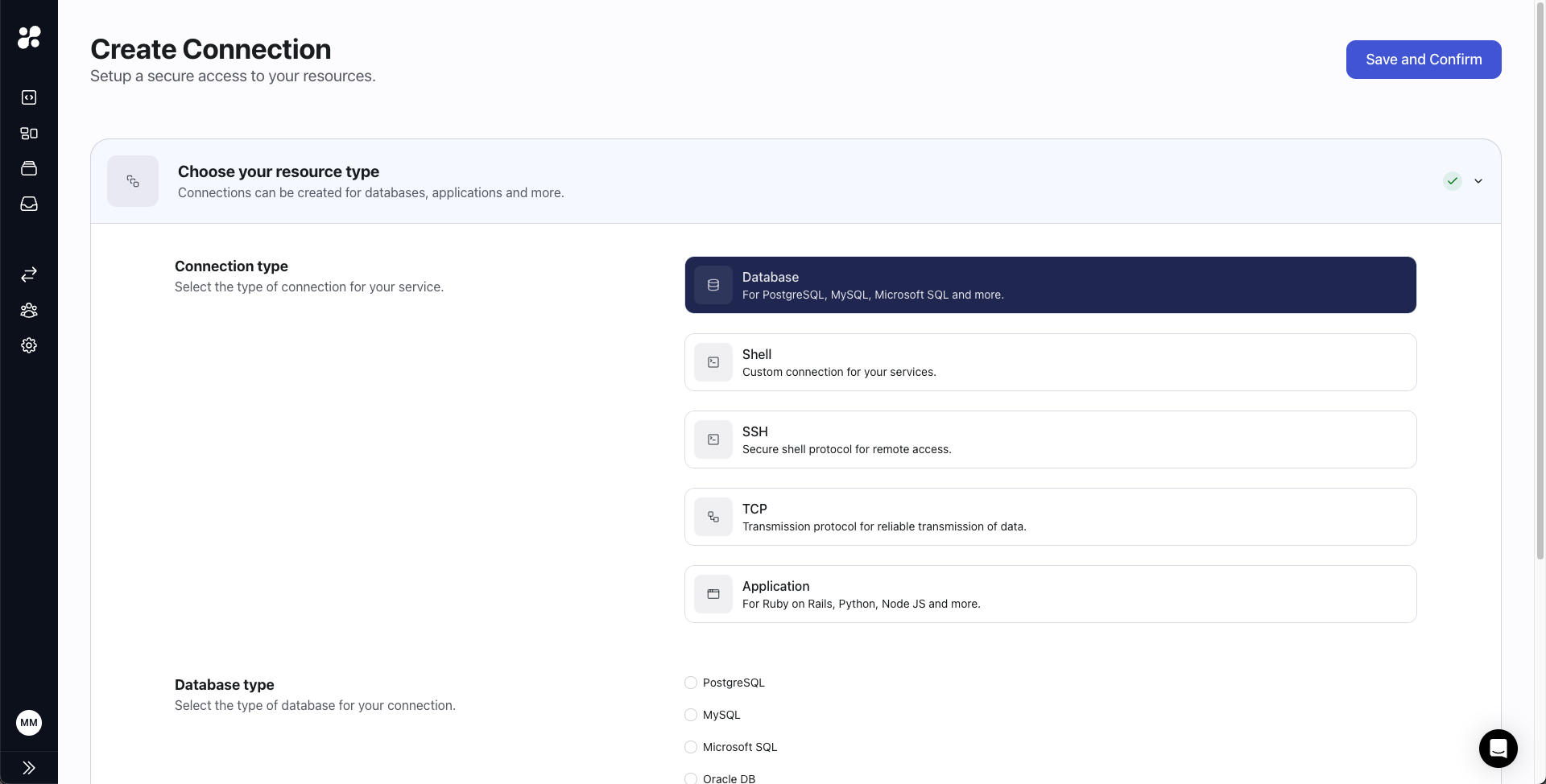
Create a new Database connection in hoop's web panel.
 ## Connection Usage
You can access it through hoop CLI or hoop web panel.
#### CLI
```bash
hoop connect
connection: pg | session: 0ebc7492-94bf-498e-ac9c-430f2d5e89b0
--------------------postgres-credentials--------------------
host=127.0.0.1 port=5433 user=noop password=noop
------------------------------------------------------------
ready to accept connections!
```
#### Web panel
## Connection Usage
You can access it through hoop CLI or hoop web panel.
#### CLI
```bash
hoop connect
connection: pg | session: 0ebc7492-94bf-498e-ac9c-430f2d5e89b0
--------------------postgres-credentials--------------------
host=127.0.0.1 port=5433 user=noop password=noop
------------------------------------------------------------
ready to accept connections!
```
#### Web panel